
From your signal source to your broker
Connect any signal source that supports webhook alerts. Every connected account gets its own webhook URL, and the orders that arrive there go to your broker.
Current support for Tradovate and NinjaTrader. Futures only. Rithmic, ProjectX and other integration support coming soon.
The chain, end to end
Your signal source fires an alert. TradingView, TrendSpider, a script you wrote — anything that can send a webhook when your strategy triggers.
The alert carries a payload. That's the JSON in the alert's message box: the symbol, the side, the quantity, the order type, and any protection you want attached.
The payload arrives at a webhook URL. Each connected account has its own. The URL is the account — that's how we know where the order goes.
We validate it and forward it. The checks below run first. What comes out the other side is an order at your broker.
Your broker fills it. The result comes back and lands on your Orders screen with a status.
Three steps to set it up
Connect your broker account.
Link your Tradovate or NinjaTrader account so orders can be placed on your behalf.
Enable your webhook.
Each connected account gets a unique URL that receives signals and routes them to your broker. Keep it private — anyone with it can send signals to your account.
Configure your signal source.
Copy the URL into your alert's webhook settings and paste the payload into its message box.
That's the whole setup. There's no software to install and nothing to leave running on your machine. TradingView is the signal source most people start with.
See how TradingView automation works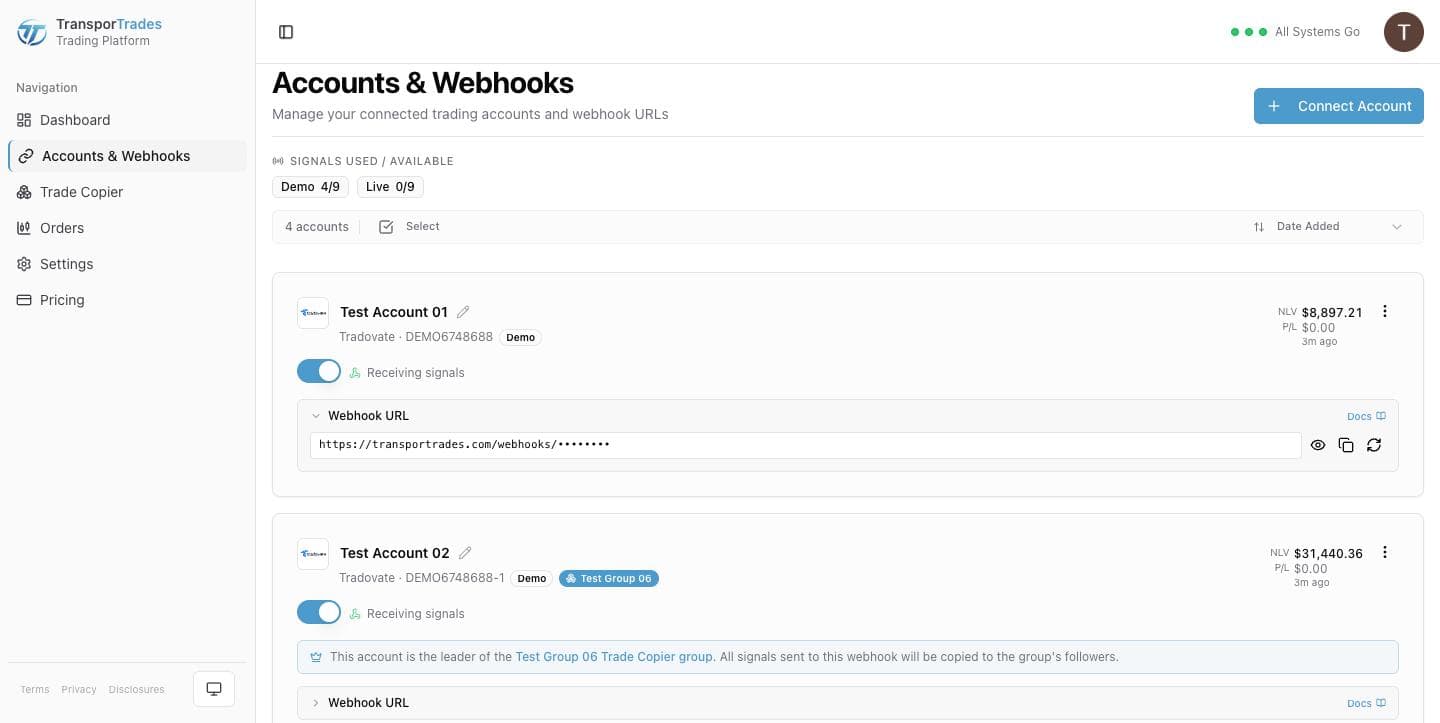
Building the payload
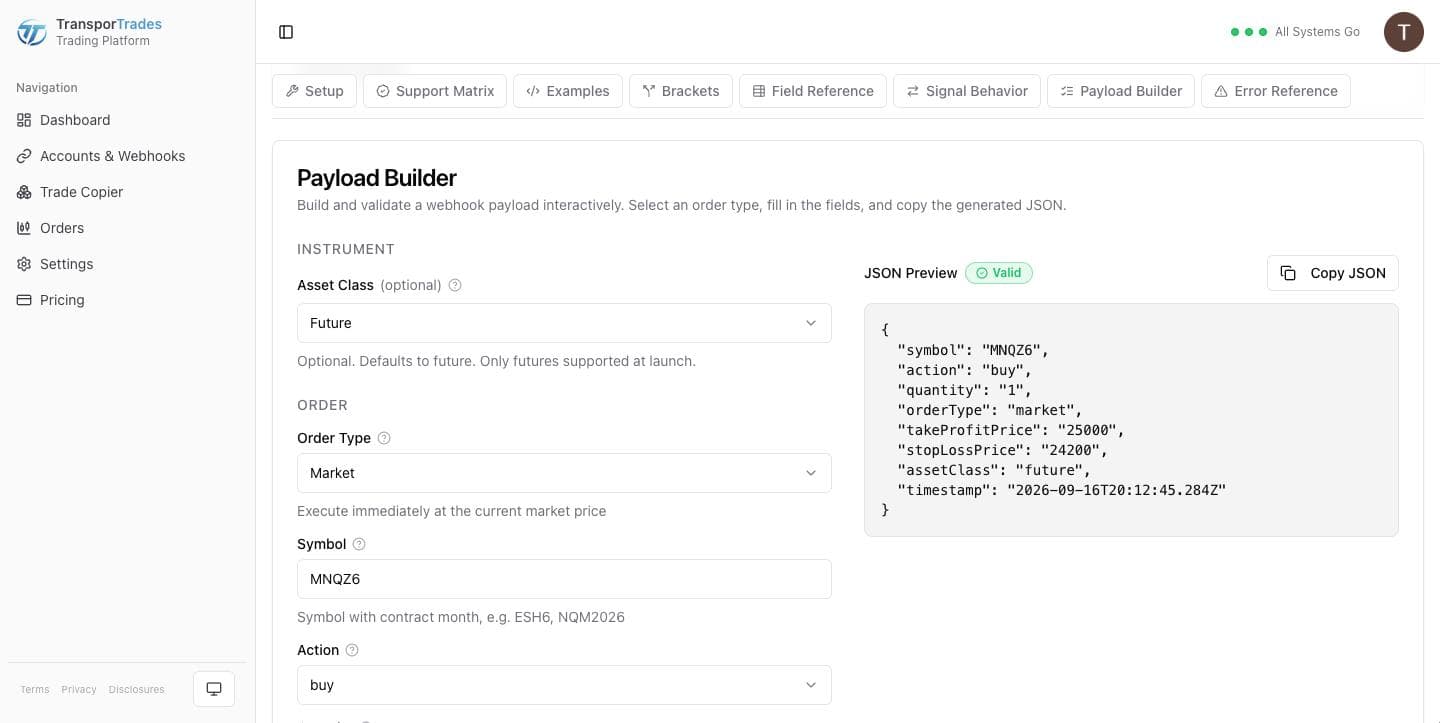
The Payload Builder does this for you. Pick an order type, fill in the fields, and copy the generated JSON — it validates as you go, so you find out in the builder rather than from a rejected alert at the open.
Symbols carry the contract month, and the builder shows you the format. Order types are market, limit, stop and stop limit. Take profit and stop loss can be absolute prices or an offset from the fill, in ticks or points.
Bracket orders attach take profit and stop loss levels to your entry. After the entry fills, both legs go live, and when one fills the other is cancelled. If the size of that position changes later, the two protective orders are cancelled and re-placed to match it.
What we check before an order goes out
Every signal runs the same validation, whether it came from an alert or from the Quick Order ticket.
The account environment has to match. Set the account type in the payload and a demo payload can't fill on a live account by mistake.
Duplicates don't go twice. An idempotency key is generated from the payload if you don't supply one, so a repeated alert doesn't become a second position.
A stale alert can be turned away. Include a timestamp and we'll reject a replay rather than trade it.
Same symbol, same direction, already open? The order is rejected before being sent to the broker, and the order's historical row says so: “A position is already open in this direction — the order was not sent.”
Same symbol, opposite direction? That's a reversal, not a mistake, so it's treated as one. The open position is closed first, and the new order goes out once the account is confirmed flat — two orders from one signal, in that order, rather than a hedge.
A size ceiling, if you want one. Set a maximum account value in the payload and orders stop above it.
How an order ends
An order moves from received, to sent to your broker, to a word that says what happened — with a timestamp at each step. Those are on our clock, and the last one also shows what your broker told us and when your broker told us, labelled as the broker's. Two clocks can disagree by a few hundred milliseconds, and a row that doesn't say which one it's showing you is worse than no timestamp at all.
There are ten of those words, not forty. Filled, Flattened, Cancelled, Rejected, Failed, Dismissed, Skipped, No position, Unknown symbol, Not sent. Open any row and the detail says which one and why in a sentence.
Working, Partial and Unconfirmed aren't on that list, because they aren't endings. The first two are an order still standing at your broker. The third is one your broker hasn't acknowledged yet.
The colors mean something too. Grey is benign — a cancel you asked for, or a close against a position that was already flat. Amber wants your attention. Red is a failure. An order we haven't heard back on shows as Unconfirmed in amber, because not knowing yet isn't the same as failing.
Trade Copier: More than one account
Point your alerts at one account's webhook and that account trades. Make it the Leader of a Trade Copier group and every Follower gets an exact copy of its orders, across different brokerages and different logins.
Each account is validated independently, so a group signal doesn't report one verdict — it reports a verdict per account.
Learn more about the Trade Copier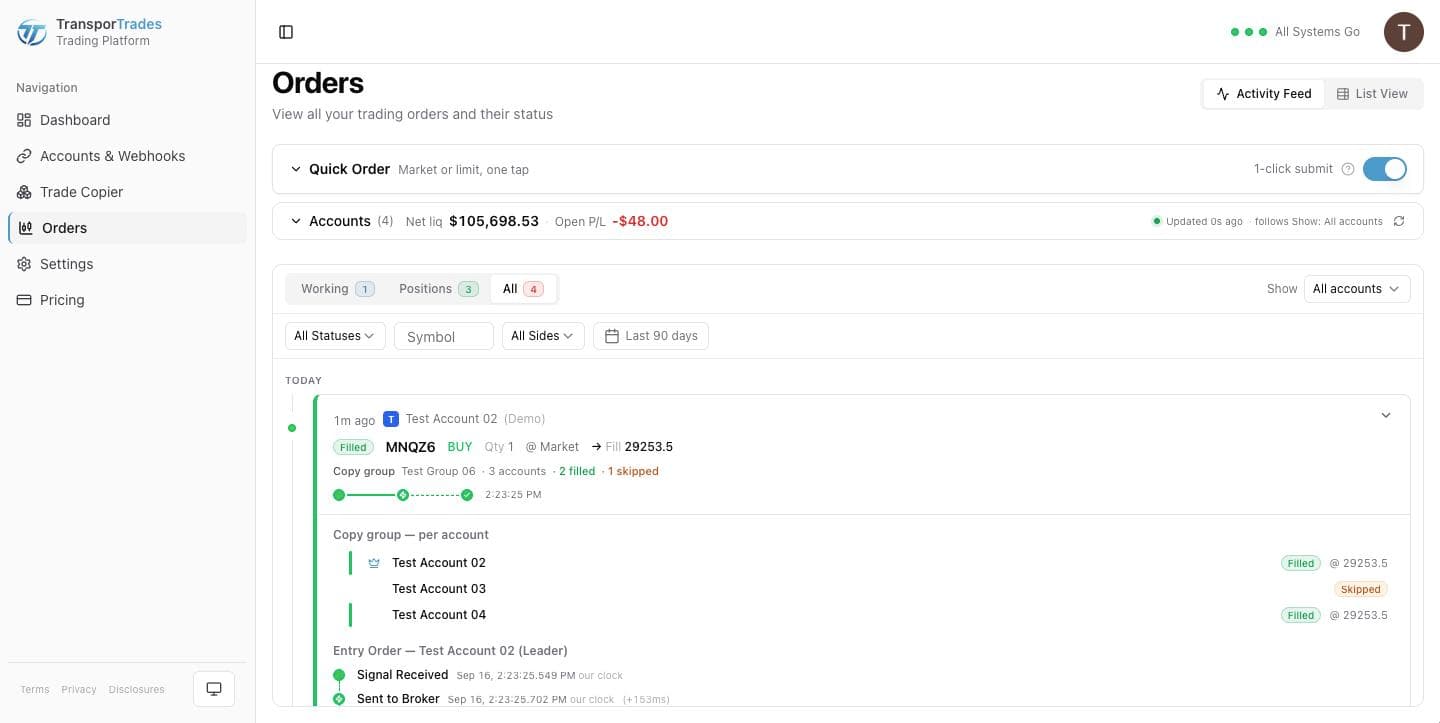
When an alert isn't right
The most common reason an order doesn't happen is that the alert didn't carry a payload. A TradingView alert left on its default message sends plain text, and plain text isn't an order.
When that happens the row tells you which of those it was — empty message, not valid JSON, missing a required field, or the wrong shape — and points you back at the payload template. Repeated format errors pause the webhook rather than let a broken alert keep firing, and the notice says to check the message against the Payload Builder before you turn it back on.
A webhook also pauses if it's hit too hard in a short window — a strategy misfiring in a loop looks the same from our side as one firing on purpose, and pausing is the safer reading. There's no cap on how much you trade; there is a limit on how fast a single account can be hit, and the notice tells you which of the two stopped it.
Questions
Try it for free
Use the platform for 7 days completely free of charge, no credit card required.
* Routing only. Order acceptance, execution, and fill outcomes are determined by your broker, exchange, market conditions, and other factors outside our control.
NinjaTrader® is a registered trademark of NinjaTrader Group, LLC. TradingView is a trademark of TradingView, Inc. Tradovate is a trademark of Tradovate, LLC. TransporTrades is not affiliated with, endorsed by, or sponsored by any of these companies. See our full Third-Party Trademarks.