
Manage your orders and positions
Change quantities, add or remove protective legs, adjust entry and exit prices, and cancel or close using familiar and intuitive controls.
Available on every connected account, individually or as a Trade Copier group.
Quick Order
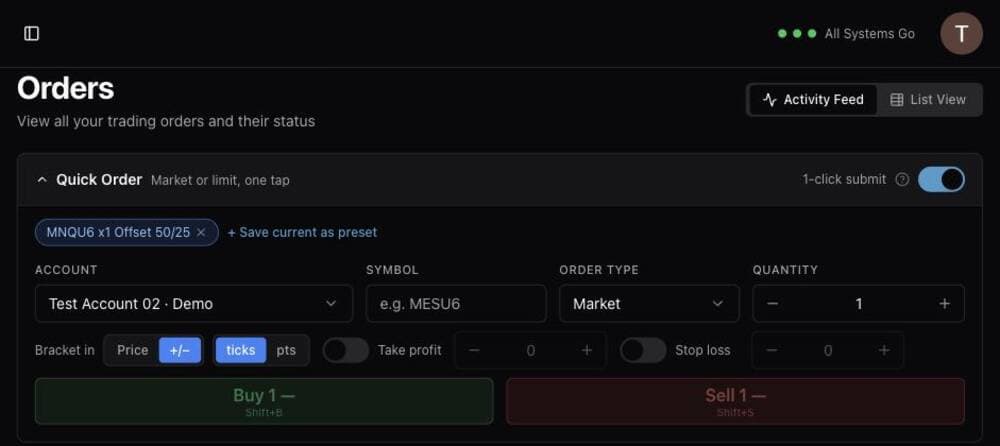
The Quick Order ticket sits at the top of the Orders screen and on every Trade Copier group card. Pick the account, symbol, order type and quantity, then optionally attach a take profit and stop loss in price or as an offset — ticks or points.
Save the setup you trade every morning as a preset. Turn on 1-click submit and the Buy and Sell buttons submit the order immediately rather than prompting for confirmation.
Working orders
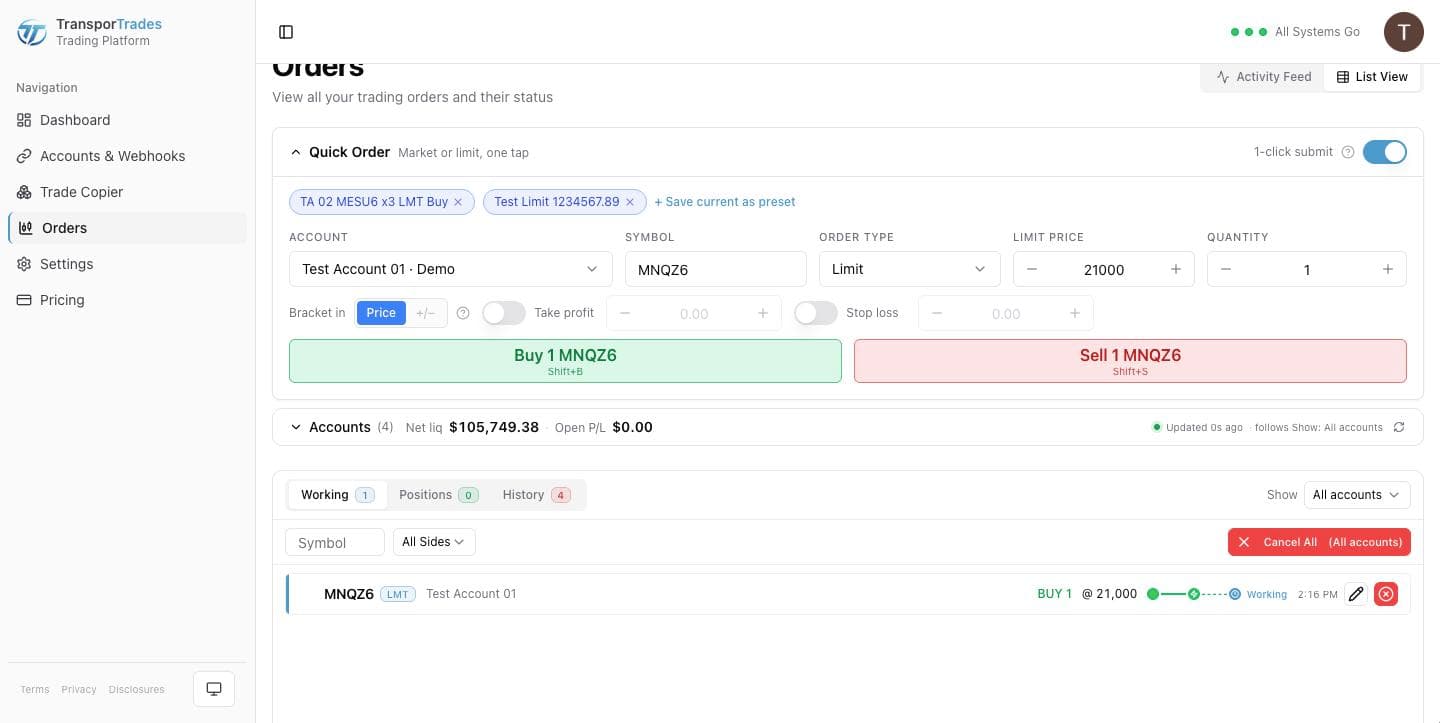
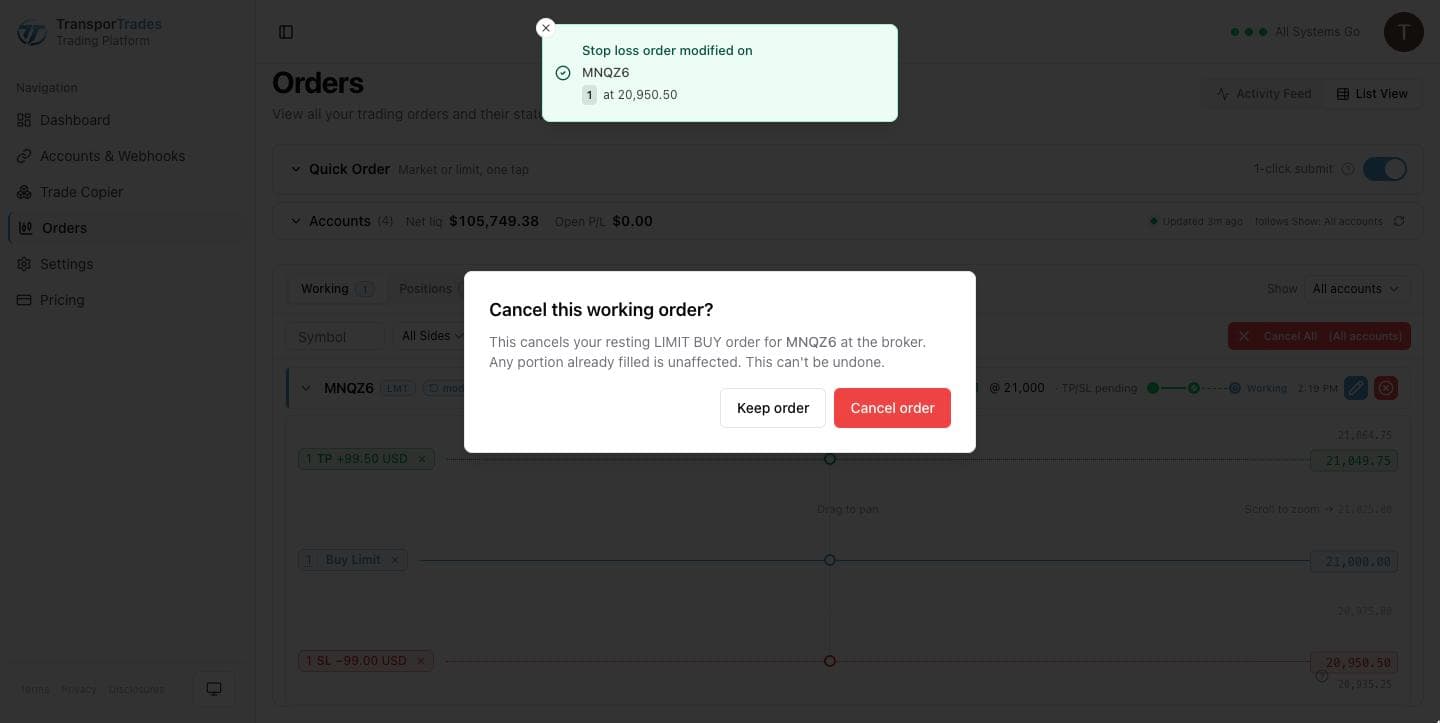
A working order carries Edit order and Cancel order on its row.
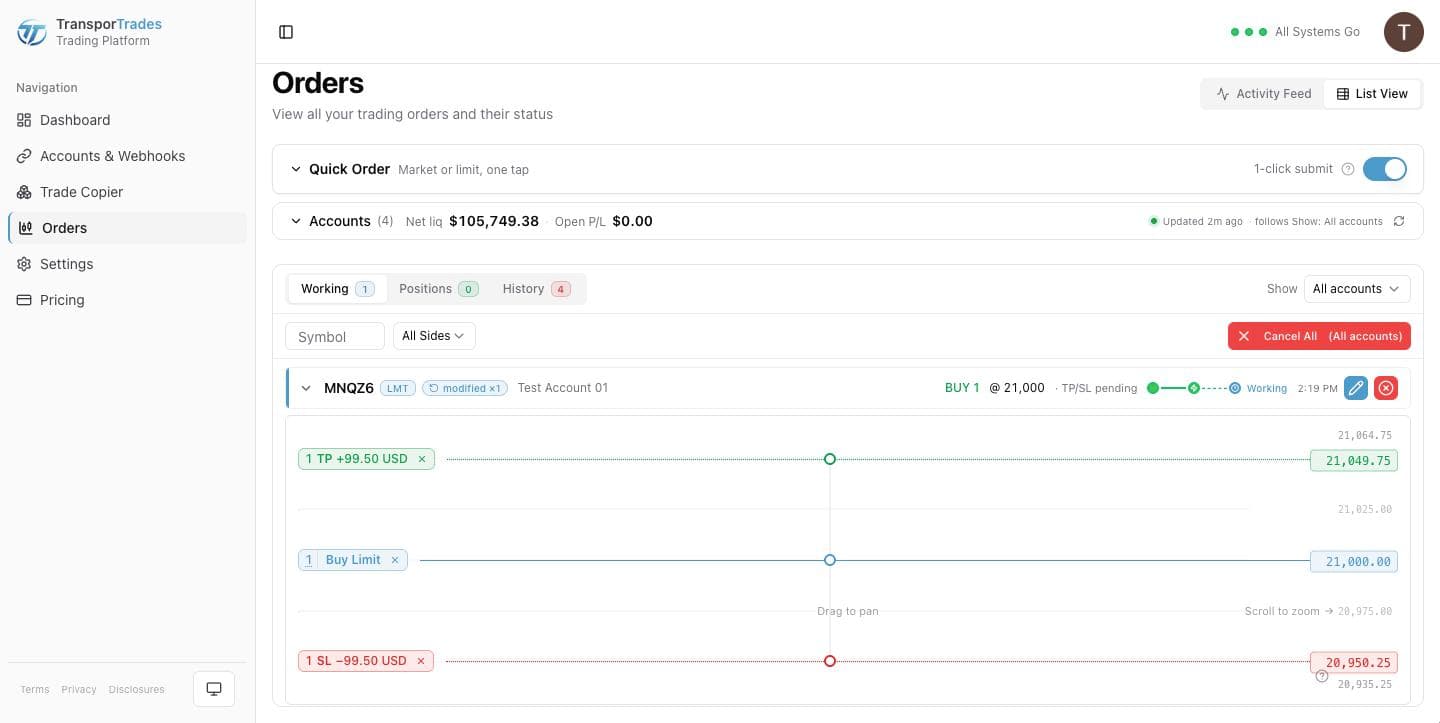
Edit opens the ladder beneath the row. Your order sits on a price line as a chip you can drag to change the entry price — drag on the background to pan, scroll on the prices to zoom — and a take profit and stop loss are chips on the same line that you can add, move or remove.
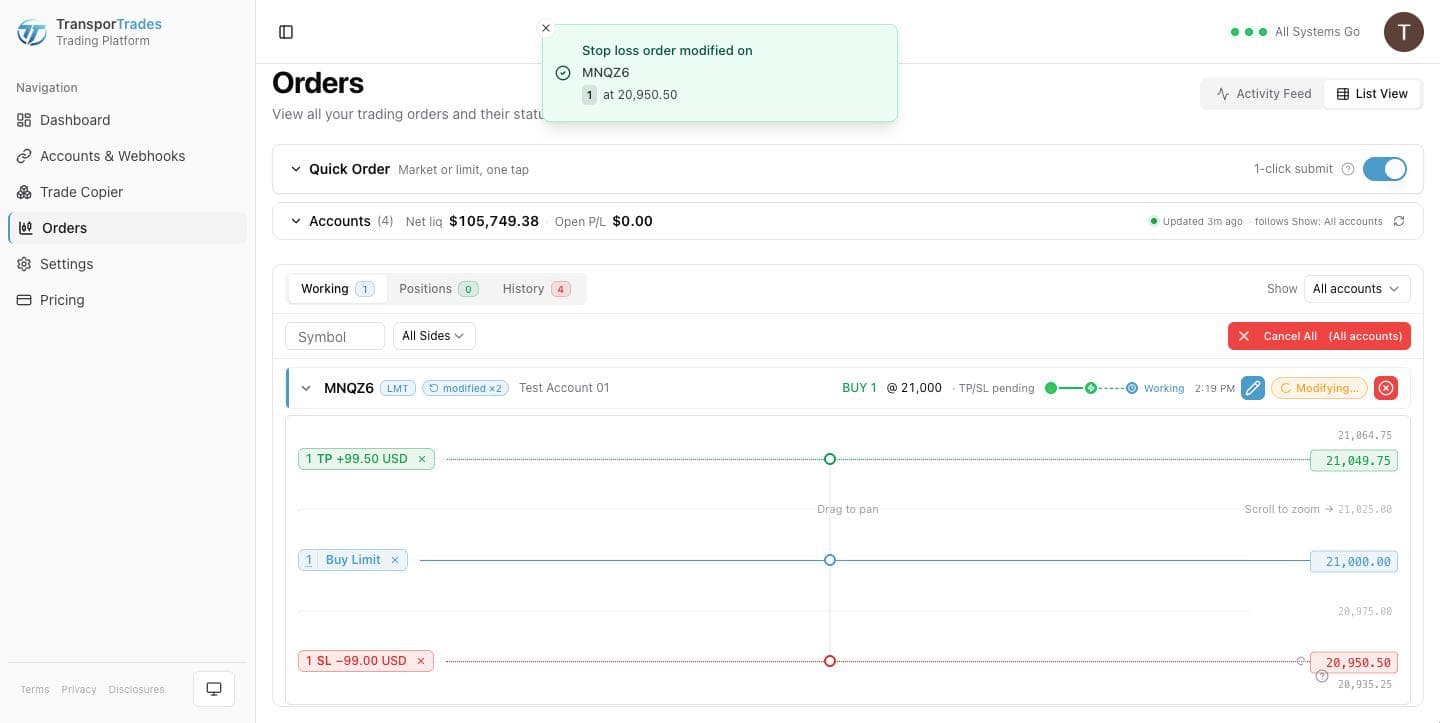
Nothing reaches your broker until you submit it. A staged change sits beside the working price until your broker confirms it, so you never see a stop that isn't there yet, and Discard drops your changes and resets the ladder.
One change goes at a time. Accidentally submit a second set of changes before the first confirms and it's refused rather than queued, so two fast clicks can't turn into two prices. The same holds across a bracket — a stop edit and a target edit on the same order can't race each other.
Positions
Edit position opens the same ladder used for Working Orders, with the same controls.
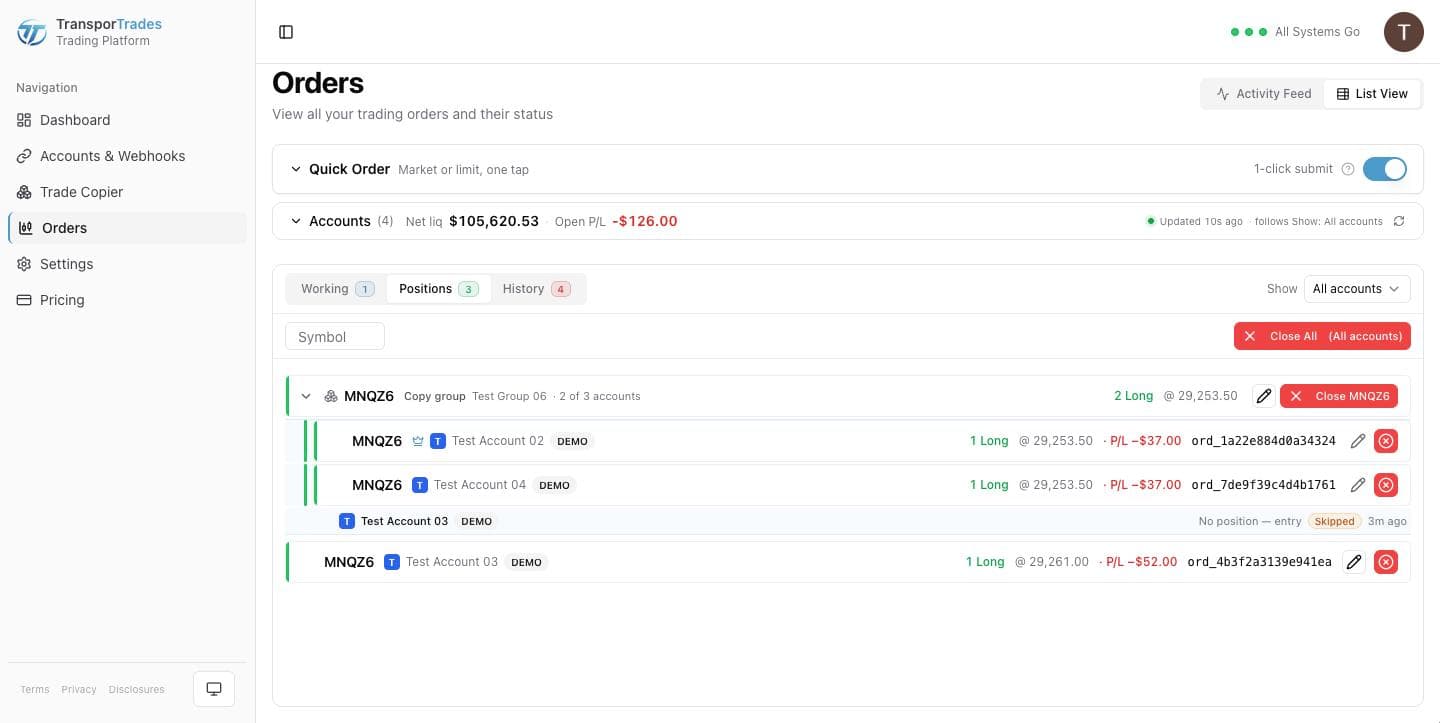
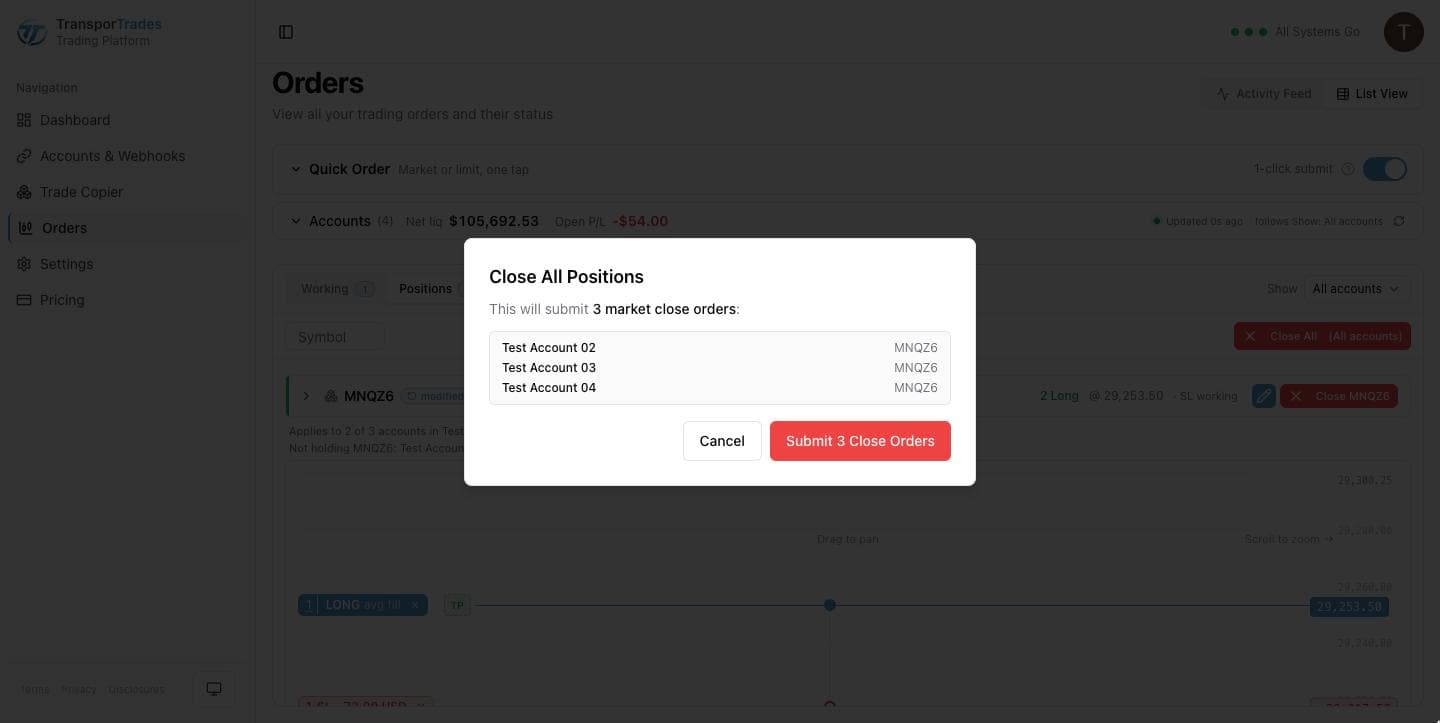
Close position submits a market close on one position. Close All does it across an account or a whole group, and what the dialog shows you depends on which. Across an account it lists every account it will reach and every close order it will send. For a group it names the group and the symbol, how many close orders it will send, and the most accounts they can reach — a group close goes to the Leader and copies out from there, so the ceiling is the honest number. Either way you see the blast radius before you confirm rather than after. That confirmation is on by default; you can turn it off in settings once you know what it's protecting you from.
Adjust your position size, add stop loss and/or take profit protective legs, and adjust leg prices all within the ladder.
Protection follows the position. Once a position has a stop and a target, any fill that changes its size — your adjustment, a partial exit, an add — is followed by those two orders being cancelled and re-placed at the new size. There's no switch for this and nothing to remember: a protected position doesn't end up half-covered because you scaled in.
Working with Trade Copier groups
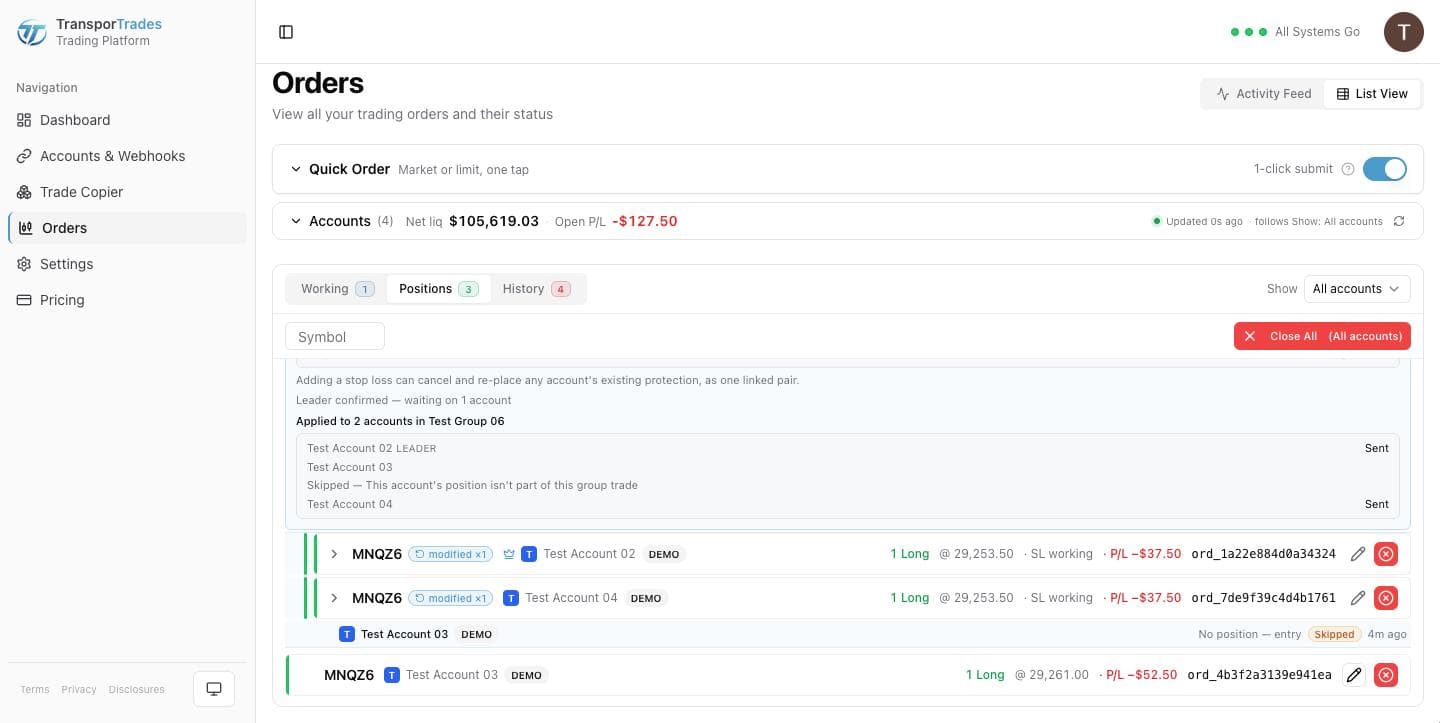
Modifications for Trade Copier group orders and positions work the same as with individual positions. Any modifications made to the group are applied to the Leader and all Follower accounts.
The ladder lists every account by name as the change goes out, and an account that refused or skipped displays the status.
Questions
Try it for free
Use the platform for 7 days completely free of charge, no credit card required.
* Routing only. Order acceptance, execution, and fill outcomes are determined by your broker, exchange, market conditions, and other factors outside our control.
TradingView is a trademark of TradingView, Inc. Tradovate is a trademark of Tradovate, LLC. TransporTrades is not affiliated with, endorsed by, or sponsored by any of these companies. See our full Third-Party Trademarks.